
How to integrate Leadster with Google Sheets
In this tutorial, you will learn how to integrate Leadster with Google Sheets in a few simple steps.
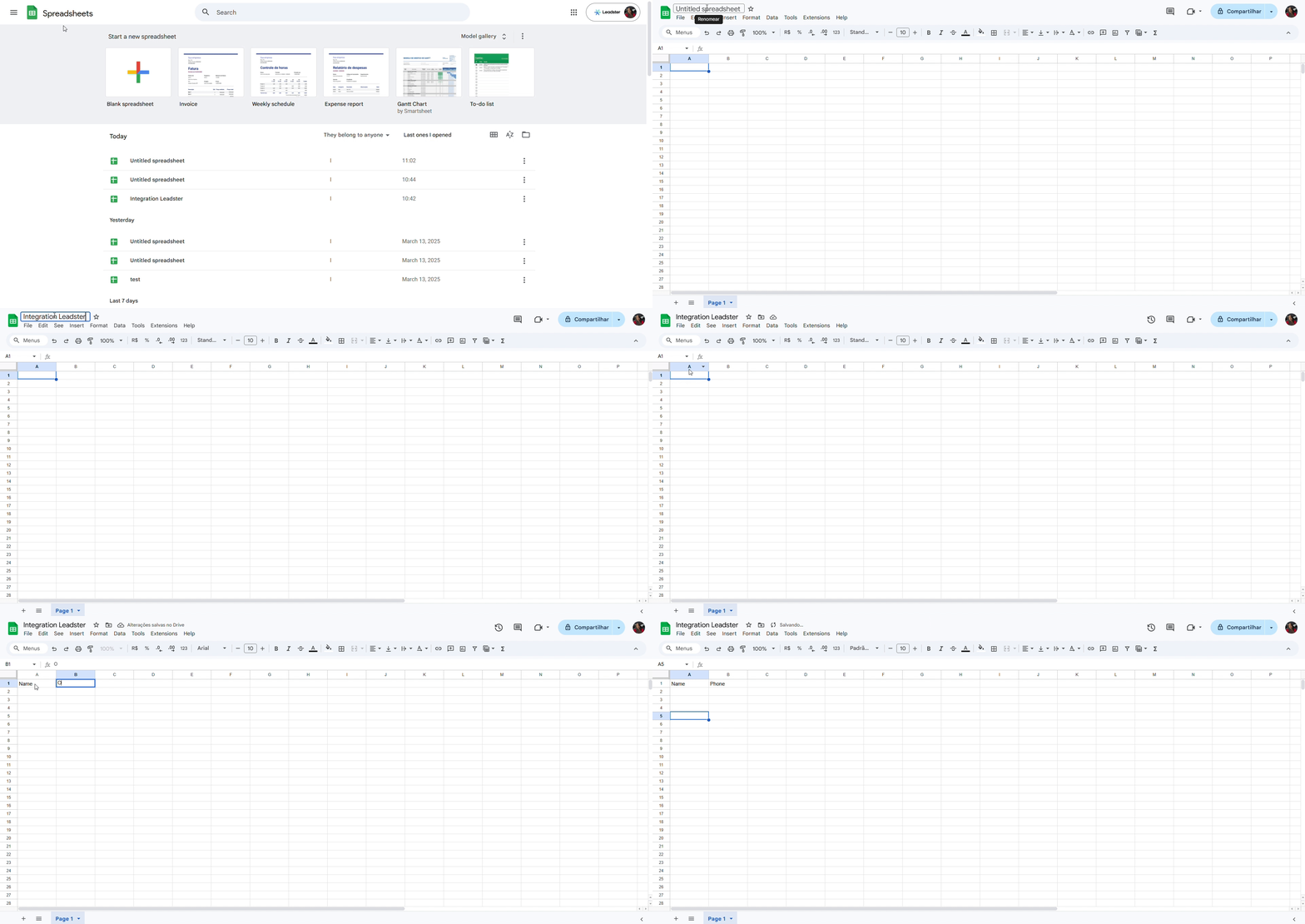
In Google Sheets:
- The first step is to create a sheet that will receive the data.
- Next, you will need to define the information you want to receive in this integration and include the field names (e.g., Name, Phone, Email, Date and Time of lead reception, etc.) in the first row of the sheet.
In the Leadster platform:
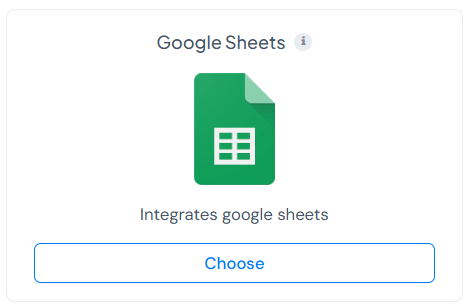
- Go to the Integrations tab, find the "Google Sheets" logo, and click "Choose."
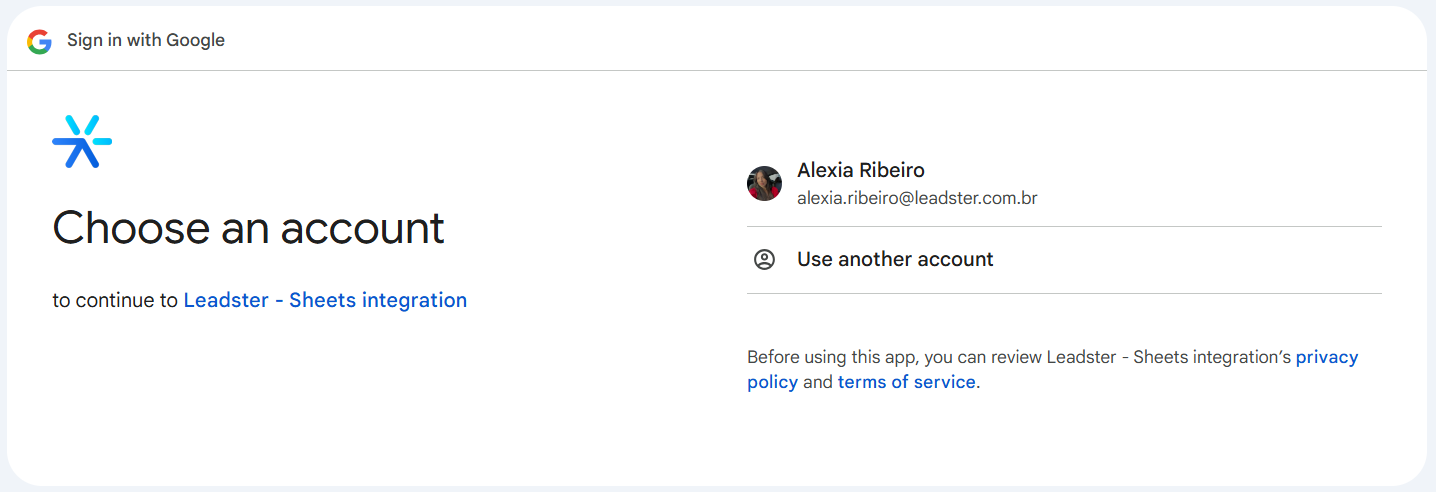
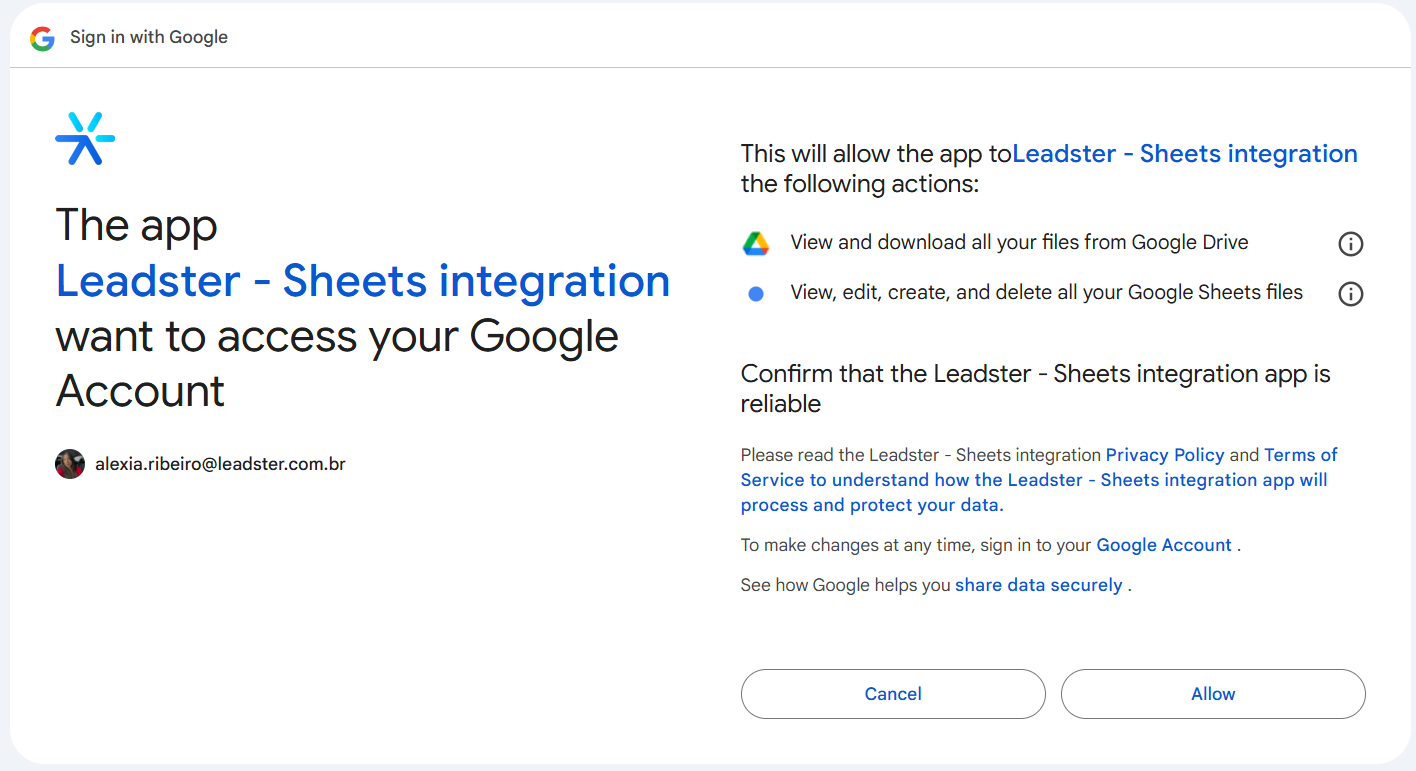
- A new screen will appear for you to log in with your Google account. Select the account you want to connect.
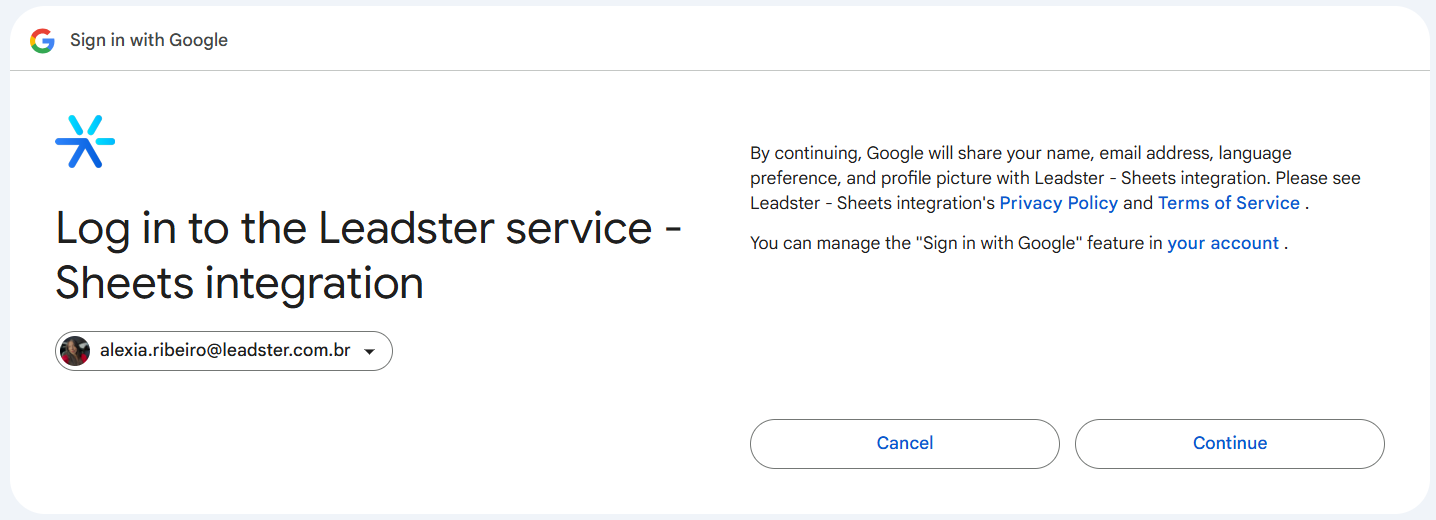
- Click "Continue":
- Then click "Allow":
- After connecting, the next step is to select the sheet that will receive the data:

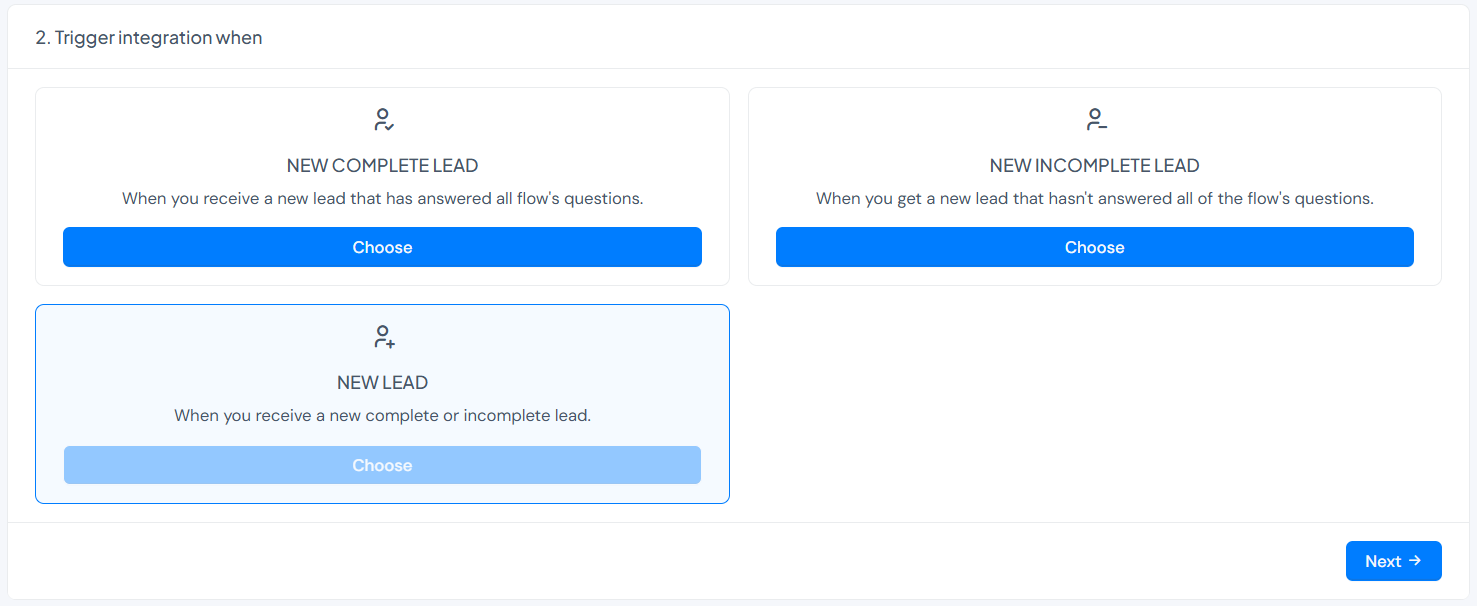
- Choose the type of lead you want to receive: complete, incomplete, or both:
- Select the flow you want to integrate:

- Now, you should match the information configured in the sheet, including the Leadster fields in each option:
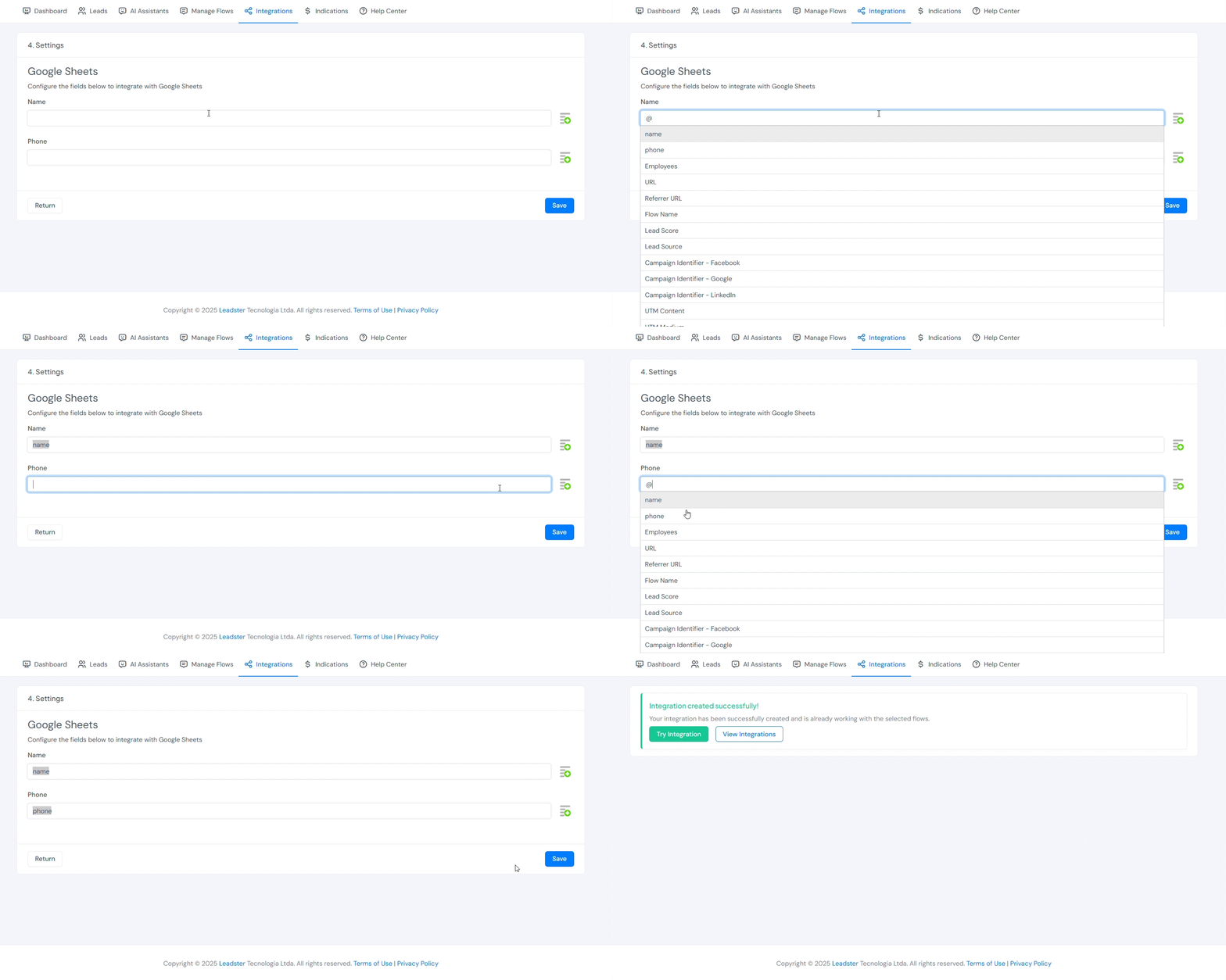
Done, your integration is set up!
We recommend running a test to confirm the integration is working. After testing, simply open the sheet to check if the data was received correctly.
If you have any questions, feel free to contact our support team.
Best regards 👋